
Set up my iPhone search: how it works


Help! My iPhone is lost! Now what!
You just get home and, as you are used to, grab your iPhone from your pocket. And then it happens: that feeling of panic, where is my iPhone? You search three more times in your pocket, jacket pocket and purse, but then come to the conclusion that your iPhone is lost. Fortunately, Apple has come up with a handy feature for that: Find My. But then “Find My” must be turned on. In this blog, we explain how to set it up. We also explain how to link not only your iPhone, but also your other Apple devices to this feature.
In this blog, we discuss:
- What is find my iPhone?
- Set up Find My iPhone on your iPhone or iPad
- Set up Find My Mac on MacBook or iMac
- Set up Find My iPhone on Apple Watch and AirPods
- Set up Find My iPhone from the computer
- How do I block my device and enable Lost Mode?
- Disable Find My iPhone
- Low battery but still retrieve your iPhone’s location?
- Battery dead or iPhone offline, can I still find my iPhone?
- Additional security in case of theft, Stolen Device Protection
- Why do I sometimes see an exact location of my iPhone?
- Questions or need help?
What is find my iPhone?
Find My iPhone (or Find My iPhone if your device is set up in English) is an app that lets you easily find Apple devices if they are lost. So whether it’s your iMac, iPhone, iPad or any other iOS device, you can pair them all with this! By logging into your iCloud account, which you do with your Apple ID and password, if a device is lost, you can do the following things to see where your device is.
- Finding your device on a map
- Play a sound on the device (useful if you know it’s at home but
have no idea where) - Locking your device remotely
- Delete all data on a device.
Set up Find My iPhone on your iPhone or iPad
Setting up Find My iPhone is fairly simple, but essential if you want to take advantage of this feature. You proceed as follows.
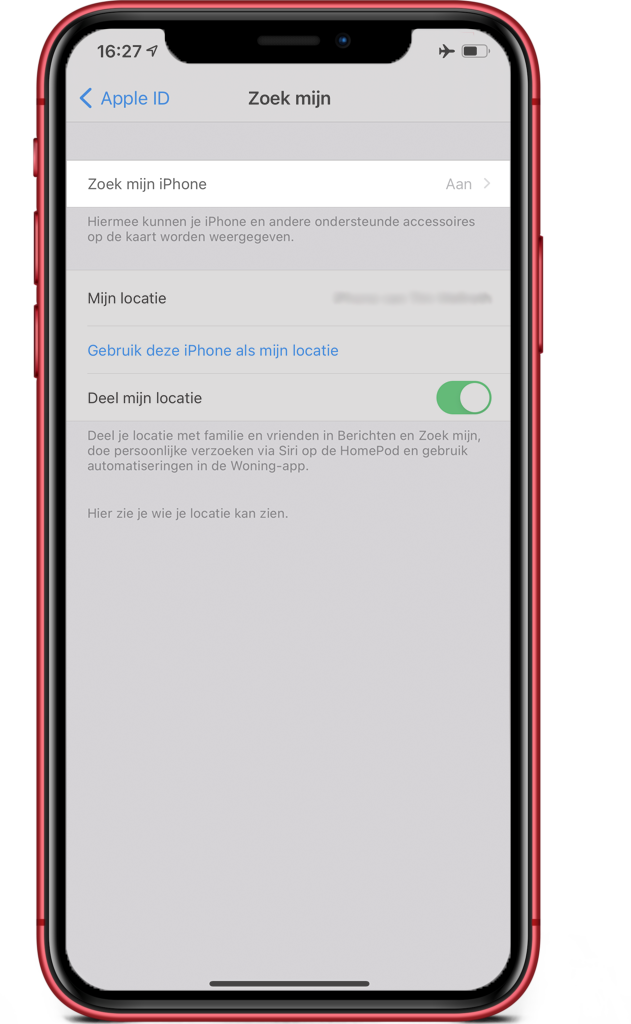
- Unlock your iPhone or iPad and go to Settings
- Tap your name at the top
- Go to Find my
- Tap Find My iPhone
- Turn on Find My iPhone
- Also turn on ‘Send last location’
- Also turn on ‘Find my network’

Set up Find My Mac on MacBook or iMac
As indicated earlier, there is also a “Find My Mac” feature. You can use this feature to locate your MacBook or iMac. To activate the feature, follow these steps:
- Open your Macbook,iMac and go to System Settings and then choose iCloud.
- Enter your personal Apple ID and follow the instructions.
- Now check the “Find my Mac” option.
Tip, on newer Mac versions you can often find this through System Settings, your Apple ID, iCloud, Find My Mac.
Set up Find My iPhone on Apple Watch and AirPods
Apple’s recall feature is also available for your AirPods and for your Apple Watch. The nice thing is: you don’t have to set up anything separately for this. As soon as you enable “Find My” on your iPhone, paired devices such as AirPods and Apple Watch are automatically added.
Set up Find My iPhone from the computer
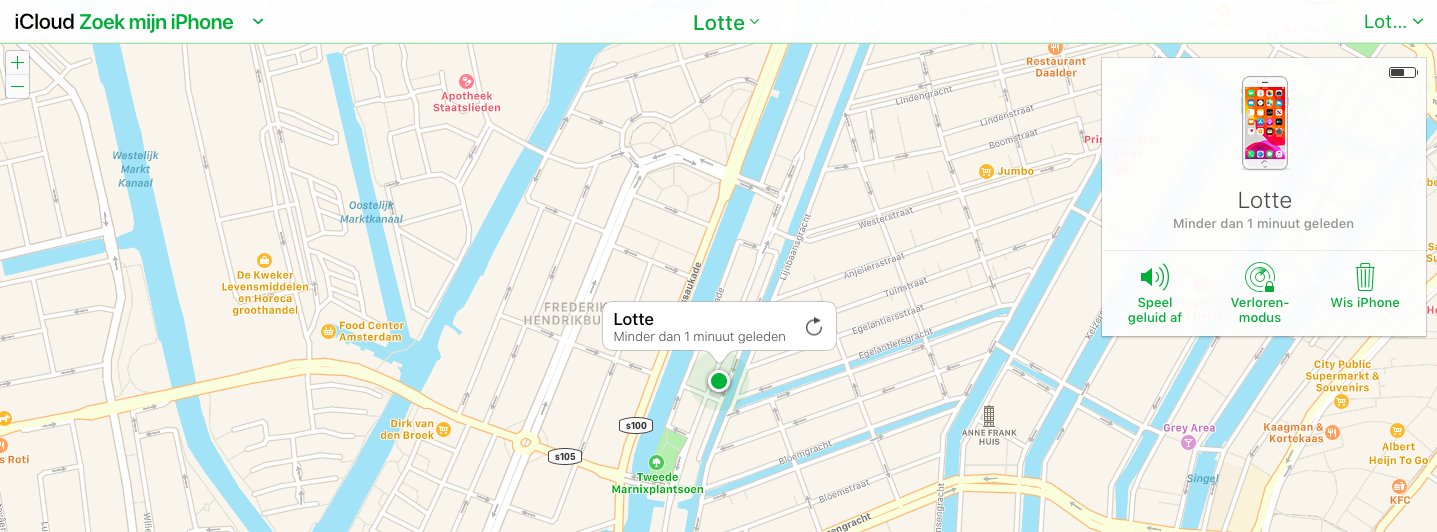
When your iPhone is lost or stolen, you can quickly go to a computer with an Internet connection. Using your Internet browser, go to iCloud.com/find. Log in there with your Apple ID and choose “Find My. Your paired devices will then appear on a map. When you click on the device, you can perform a number of actions, such as play sound or enable lost mode.
How do I block my device and enable Lost Mode?
When you are sure your iPhone, iPad, iPod touch, Apple Watch or Mac has been lost, you can lock your device remotely with an access code. This passcode ensures that someone else cannot just unlock your iPhone and snoop through your data.
Locking your iPhone is as follows:
- Open your Internet browser and go to iCloud.com/find or open the “Find My iPhone” app.
- Select the device you want to lock here.
- Now choose Lost mode.
If your iPhone already has a PIN or password, then your iPhone is already locked. When asked to provide a phone number, choose one that is still active or, for example, that of a friend. After all, there is no point in entering the number of your own iPhone here if you have lost it. Lost mode is now enabled and you can continue to track the location of your iPhone. You can also leave a message visible on your lost iPhone’s access screen.
Disable Find My iPhone
If you have multiple Apple devices, the list of paired devices in Find My iPhone can get long. Want to unplug a device, such as your MacBook that you really only use at home anyway? It can be done very easily, and we’ll explain how:
-
Go to iCloud.com/find or open the ‘Find My’ app
-
Select the device
-
Choose Remove from account (available only if the device is offline)
Do you still have the device, and want to turn it off manually?
-
Go to settings, your profile, iCloud, find my iPhone
-
Turn off the switch (your Apple ID password is required)
-
On Mac: system settings, your Apple ID, iCloud, find my Mac
Low battery but still retrieve your iPhone’s location?
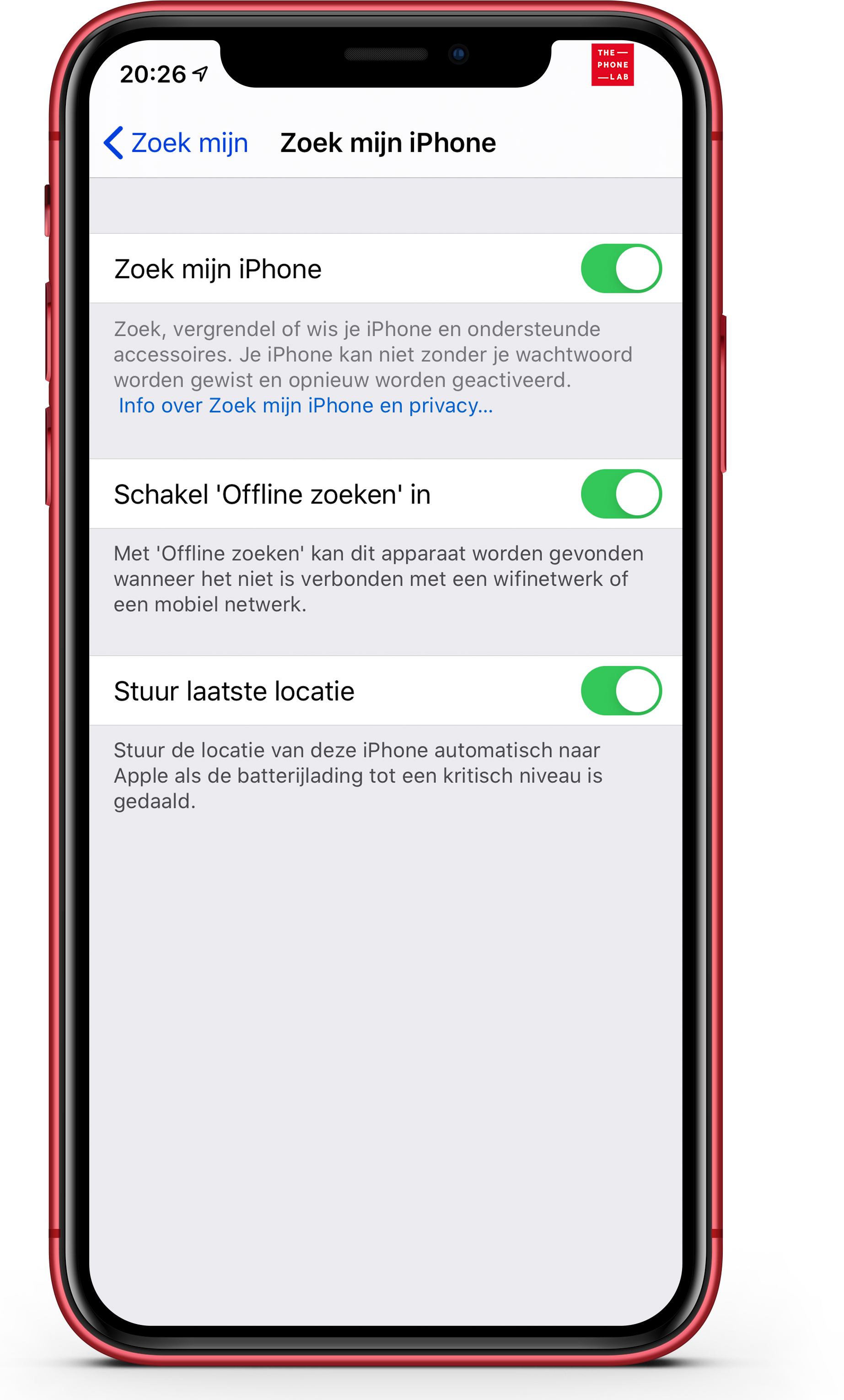
As of iOS 8, our friends at Apple have made it possible to retrieve the last location of your iPhone or iPad. You do this as follows:
- Open your iPhone or iPad and go to Settings
- Click on your profile and choose Find My
- Then click Find My iPhone and make sure Send Last Location is checked
Now your iPhone ensures that when your battery fails, your last seen location is sent to your iCloud. This location is stored on iCloud.com/find for up to 24 hours. This feature allows you to find your iPhone that is now offline due to a dead battery.
In addition, this option can help recover stolen devices. Unfortunately, it is often the case that thieves disable the device immediately, so the movement cannot be seen on the map.
Battery dead or iPhone offline, can I still find my iPhone?
Yes, you can often still do that, but then “Find My Network” must be on. If your iPhone is offline, Apple can sometimes still show a location through the Find My Network. Other Apple devices nearby then help by anonymously and encryptedly providing a location. As a result, you can sometimes still see your iPhone on the map even when Wi-Fi or mobile Internet is not active.
Note that on iCloud.com/find, a location may disappear if the iPhone has not transmitted anything for an extended period of time. In the Find My app, a last known location can often remain visible for longer, depending on whether there has been another recent signal through the Find My network.
Additional security in case of theft, Stolen Device Protection
Apple has continued to tighten security in recent years. On supported iPhones, you can enable Stolen Device Protection. This ensures that some sensitive actions require extra security when your iPhone is not in a trusted location. Consider changes to your Apple ID settings, your access code, or access to stored passwords. This makes it a lot harder for someone who stole your access code to take over your iPhone or Apple account.
Why do I sometimes see an exact location of my iPhone?
Sometimes Find My will show a much more accurate location than a normal dot on the map. This is because some iPhones, AirTags and certain AirPods models have support for more precise searching, which can guide you step by step to your device. This is especially useful if your device is nearby but just out of sight, such as between pillows, in the car or at the bottom of a bag.
Questions or need help?
Still have questions about your device and need help with this? Then stop by one of our stores or make an appointment online.
-
Does Find My work even when my iPhone is off?
You can, but only if “Find My Network” is enabled and your iPhone supports it. In that case, your device can sometimes still provide a location through the Find My Network.
-
What should I do immediately if my iPhone is stolen?
-
Can someone reset and use my iPhone?
-
How do I recognize phishing messages on Find My?
-
Can I also find my AirPods with Find My?
-
Can I share the location of my device with someone else to find it?