
Setting NL Alert on my smartphone: everything you need to know!


How do I set up my phone for NL Alert notifications?
When a disaster occurs in your area, you naturally want to know what is going on and what you should do. NL Alert was developed for this purpose. In addition to being displayed on digital billboards, you can set NL Alert on your phone. Super convenient! Read below how you can activate NL Alert on your smartphone.
We discuss:
- Setting NL Alert for iPhone or iPad
- Setting NL Alert for OnePlus
- Samsung
- Setting NL Alert for other Android devices
- Additional Android settings
- Turning off NL Alert
- NL Alert test
How does setting up NL Alert work?
NL Alert was developed by the government as an alert tool. This means of alerting and informing you about emergency situations. Think of life and health threatening situations; such as a major fire, gas leak or other emergency. When you receive an NL Alert you are told what is going on, where you can find information and updates and what you should do. Are these alerts not yet active on your phone? Read on, we will explain step by step how to activate NL Alert on your smartphone.
Setting NL Alert for iPhone or iPad
- Unlock your iPhone, go to Settings and then click Notifications.
- Scroll all the way down, and check that the Emergency Notifications option is enabled.
Do you have an Apple Watch paired with your iPhone? Then you will also receive NL Alerts automatically on your watch, you do not need to set up anything extra for this. Is the Emergency Notifications option enabled? Then your iPhone is correctly set up for NL Alerts. Does it seem that you are still not receiving NL Alerts? Then go to Apple’s website.

Setting NL Alert for OnePlus
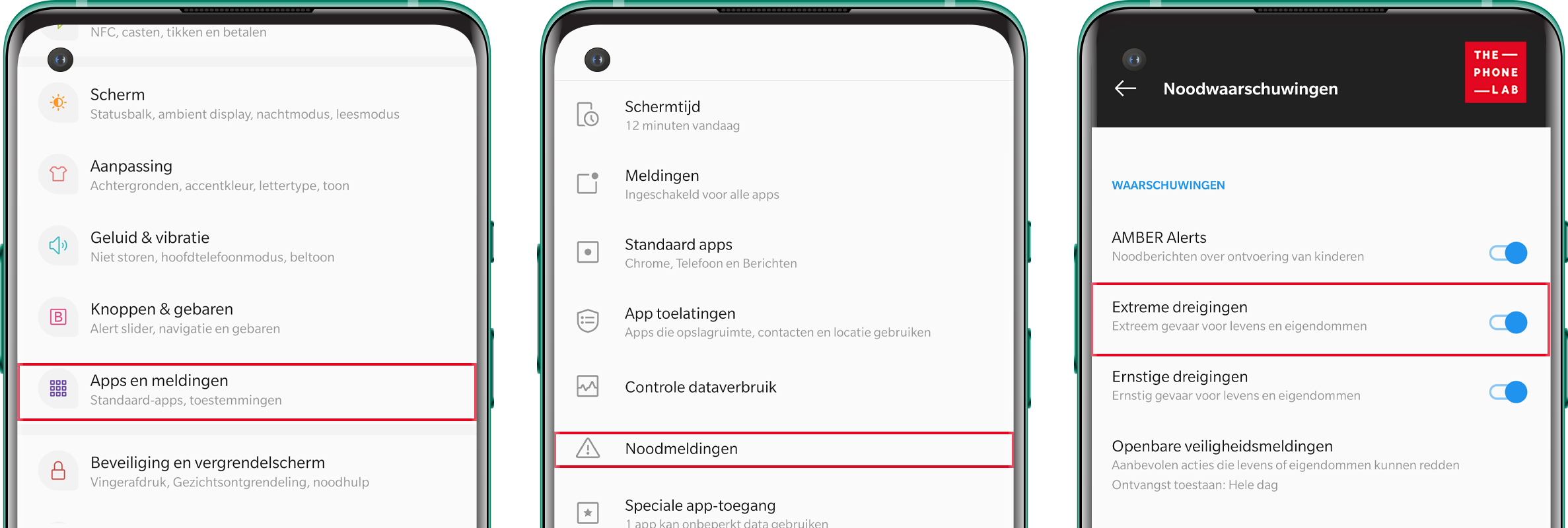
- Unlock your OnePlus and go to Settings, then Notifications, then Wireless Emergency Notifications or Cell Broadcast.
- Check that emergency notifications or extreme alerts are enabled.
Samsung
Most Samsung phones have NL Alert set up automatically, super nice! Would you still like to check if this also applies to your Samsung? Then follow these steps:
- Unlock your Samsung and go to Settings.
- Tap Notifications.
- Choose Wireless Emergency Notifications or Advanced Settings.
- Check that emergency notifications and extreme alerts are enabled.

Setting NL Alert for other Android devices
- Unlock your phone and open the Settings app.
- Search for Emergency Notification, Wireless Emergency Notification or Cell Broadcast.
- Check that the options for emergency notifications and extreme threats are enabled.
Additional Android settings
On some Android devices, you will also find these settings under Safety and Emergencies or Privacy and Security. Here you can set emergency contacts, SOS functions and location sharing in addition to NL Alert. It’s wise to check these options so you can get help quickly in emergency situations.
Turning off NL Alert
Do you want to turn the NL Alert notification off again? Then follow the above steps again, only in this case make sure you turn off all options.
NL Alert test
Unfortunately, you cannot test whether the alert actually works yourself. However, an NL Alert test is conducted every six months in June and December in the form of a control message.
-
What exactly is NL Alert?
NL Alert is a warning system of the Dutch government that informs you of emergency situations in your area. Think of large fires, explosions, extreme weather or dangerous substances. The alert tells you what is going on and what you need to do to stay safe.
-
Does NL Alert work without internet or wifi?
-
Why am I not receiving NL Alert notifications?
-
Will I get NL Alert on my smartwatch?
-
Does NL Alert work on older phones?
Are you still running into something after this explanation?
No problem, we are happy to help you in one of our stores. Make an online appointment or walk into our store, just keep in mind with the latter that you may have to wait a while.